How To Connect Your Instagram Account & Troubleshooting

Rohan Rajpal
Last Updated: 4 September 2025
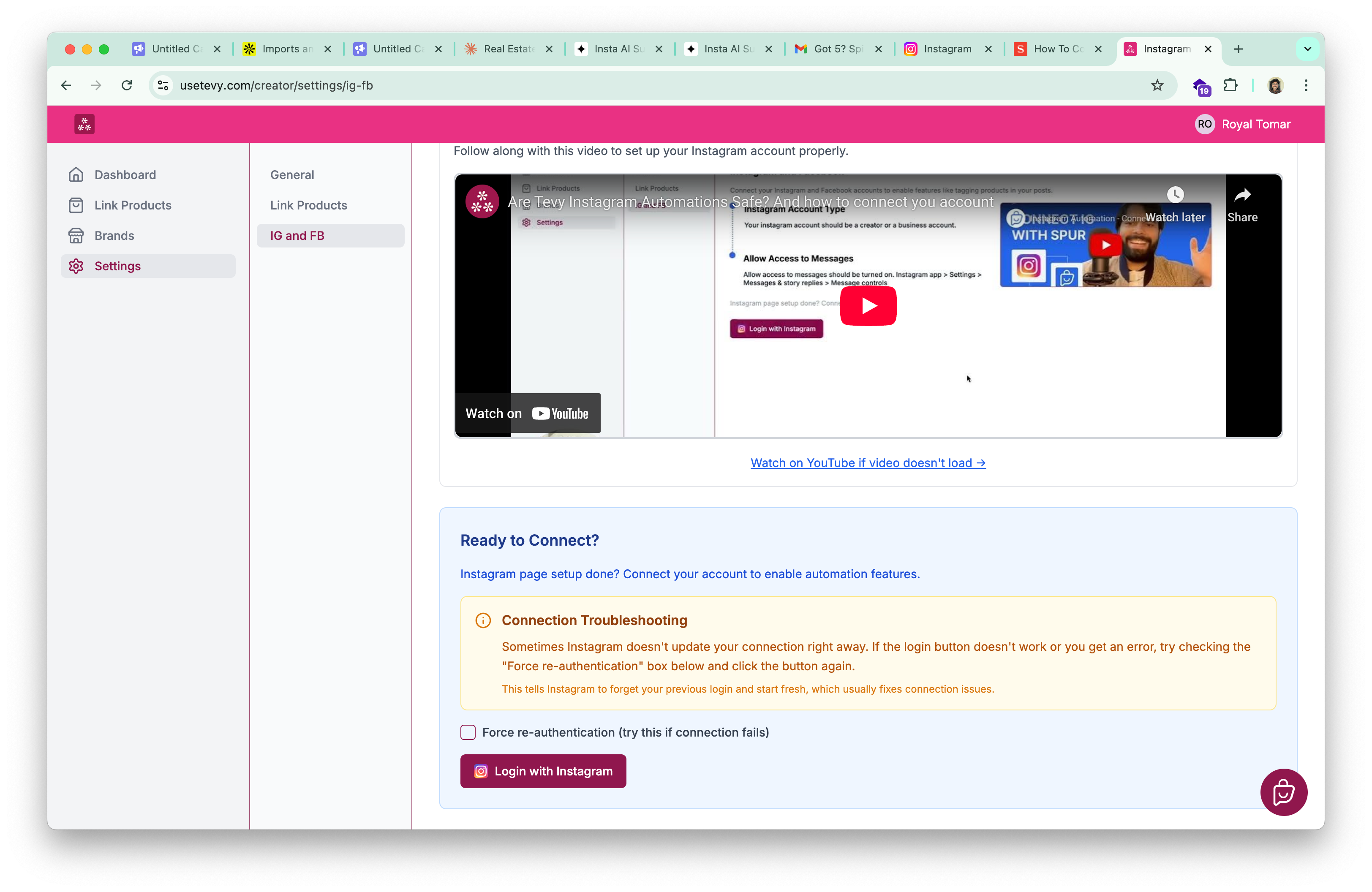
To connect your Instagram account, go to:
1. Settings > IG & FB > Login With Instagram
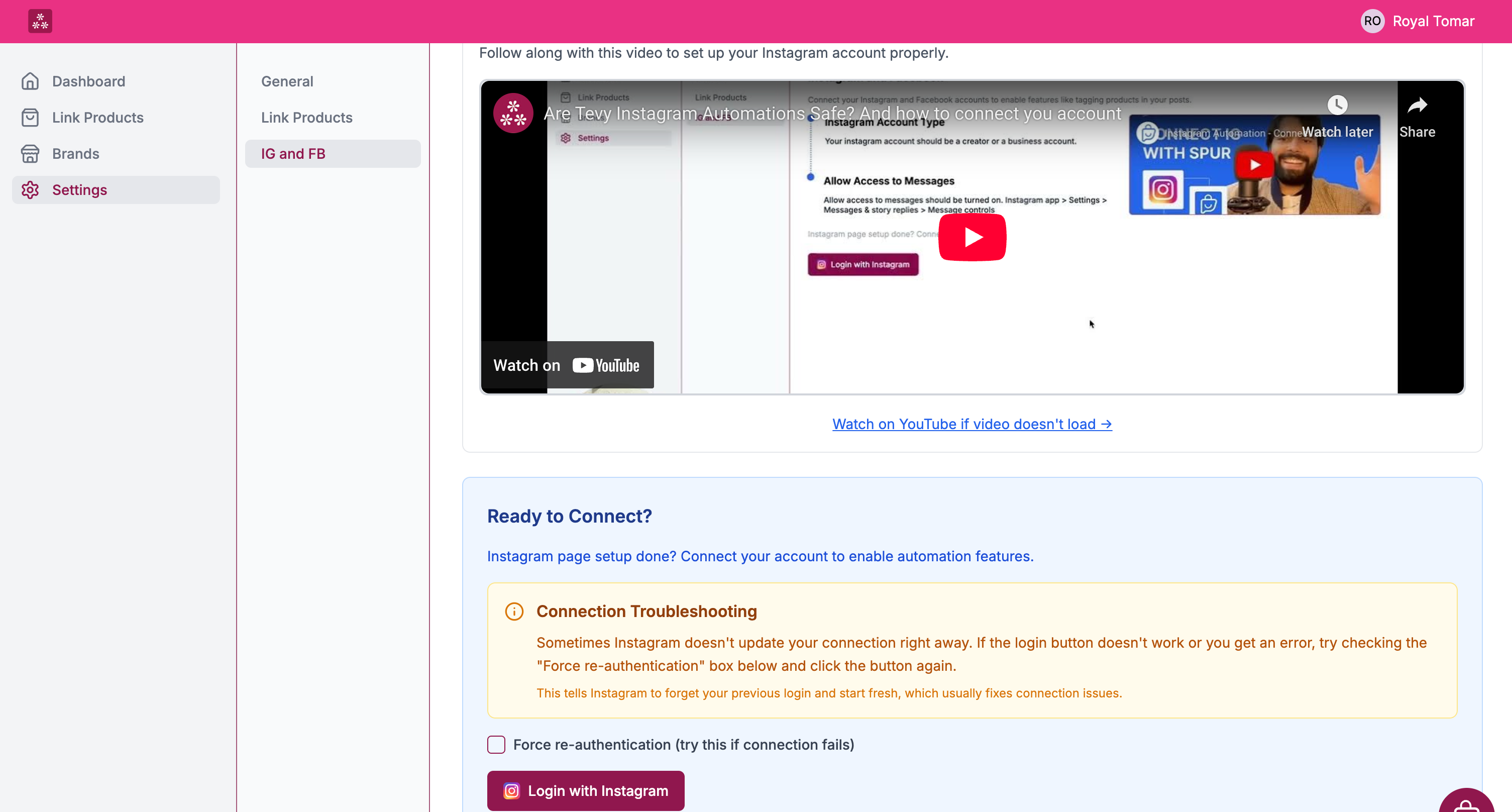
2. Then hit login with Instagram
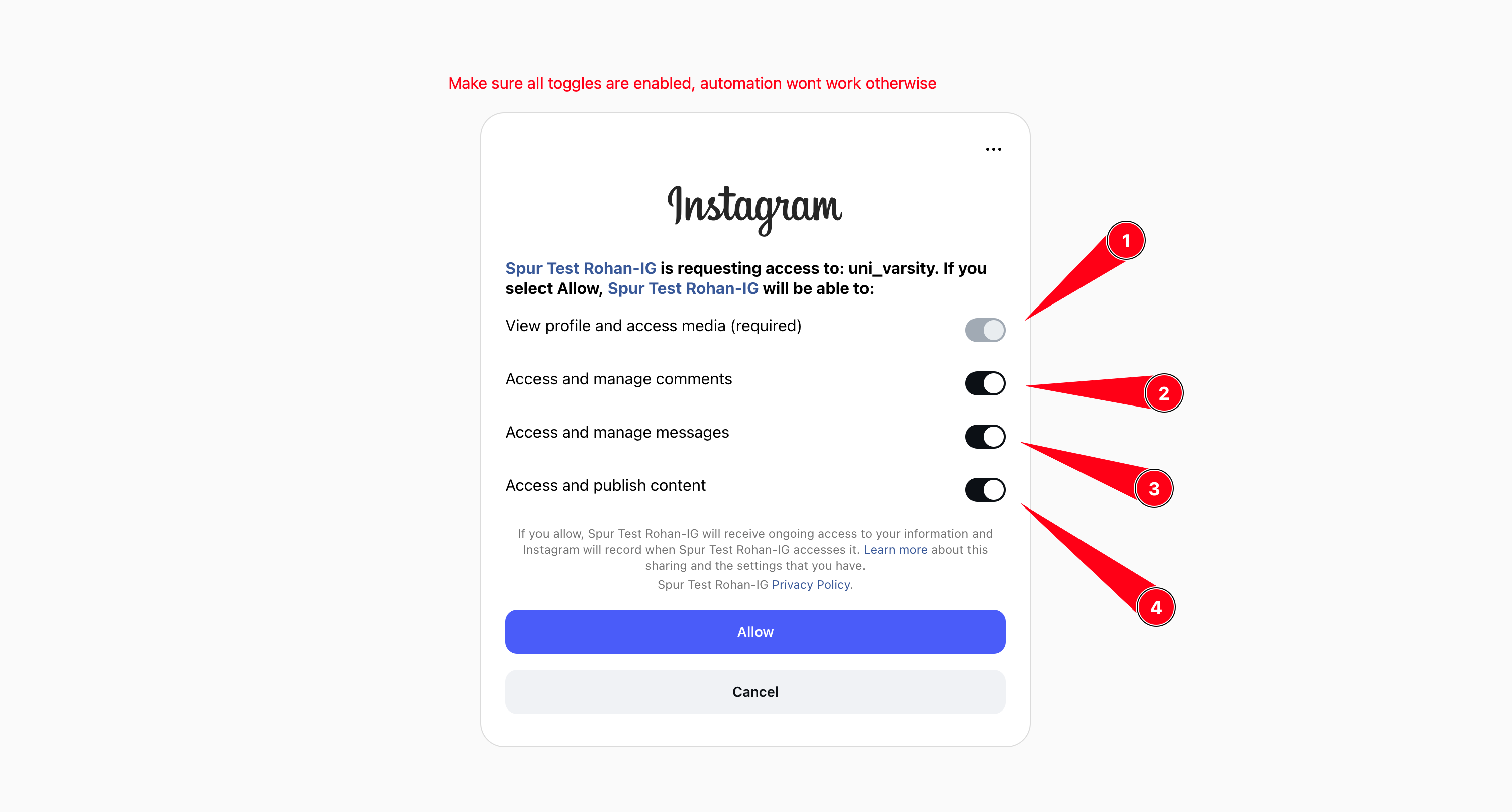
3. Now the Instagram page will ask you to confirm the permissions. Make sure all toggles are enabled, automation will not work otherwise.
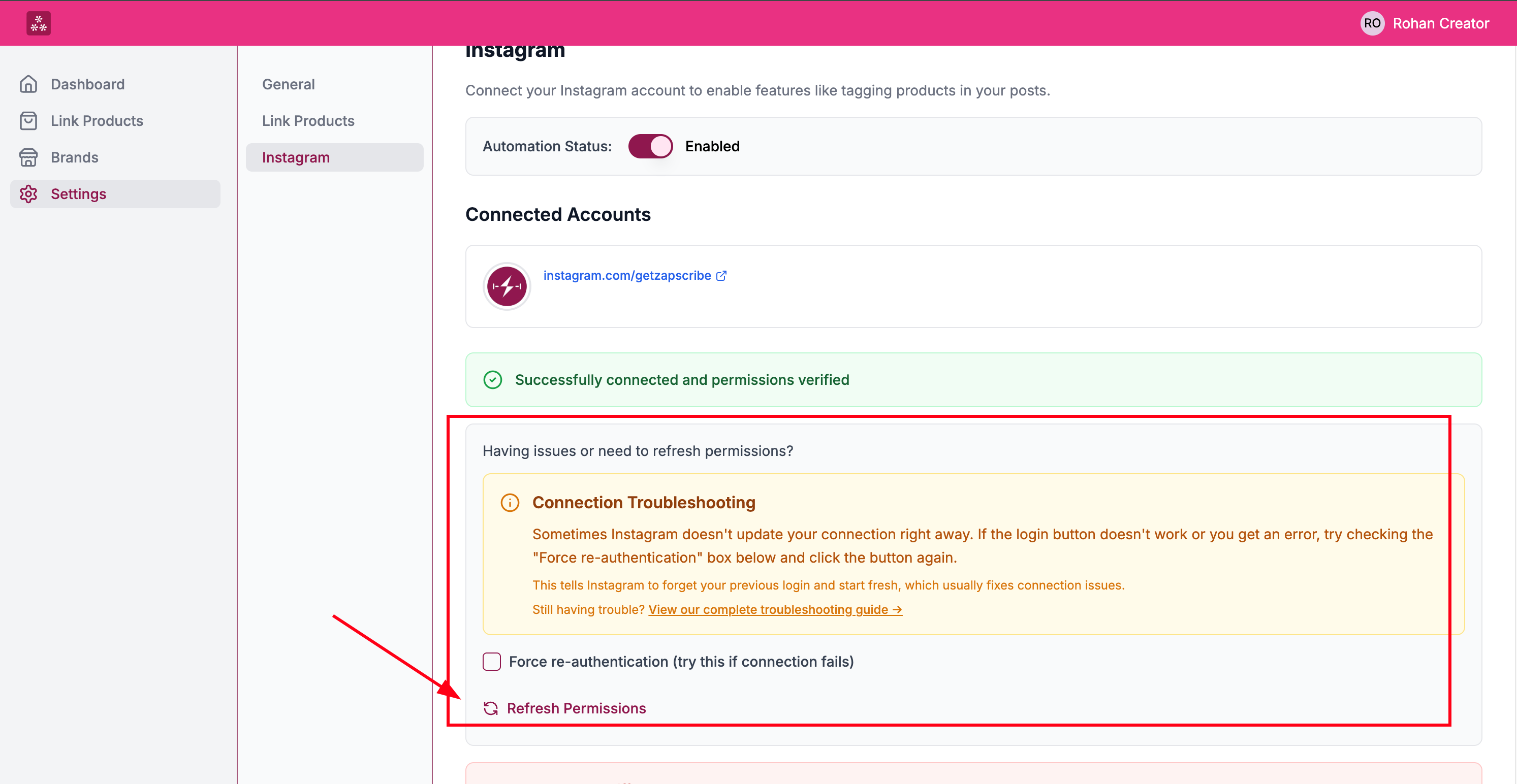
- First try checking the "Force re-authentication" check box, that forces browser to be used, on mobile, and re prompts Instagram to login if you want to connect a different account.
- Try using the Chrome browser instead of safari, sometimes safari/other browsers cause issues
- If you're using mobile, connect via Laptop, the Instagram mobile app conflicts with the login. It's just a one time setup, and you won't have to do this again.
- If you don't have a laptop, try using chrome in desktop mode and follow the same instructions.
Sometimes Instagram permissions get expired due to:
- Password changes
- Meta detecting unusual changes, that's usually when you log in or out from new devices.
- Open the Chrome app on your phone or tablet.
- Go to the website you want to view.
- Tap the three dots (⋮) at the top-right corner.
- Select "Desktop site" from the menu—check the box.
- The website will reload and display its desktop version.
- Open Chrome and go to your desired website.
- Tap the share button (square with an arrow) in the address bar.
- Scroll down and tap "Request Desktop Site."
- The page will reload and show the desktop version.
- To switch back, uncheck "Desktop site" on Android or tap "Request Mobile Site" on iOS.
- Desktop mode may make text and elements appear smaller since it's designed for larger screens.